
SafeBrowser - Secure & Private
Smart Utils Dev TeamTools
4.4126.00 Reviews
- Version
- 1.0.5
- Installs
- 100.00K
- Age Rating
- Everyone
Screenshots
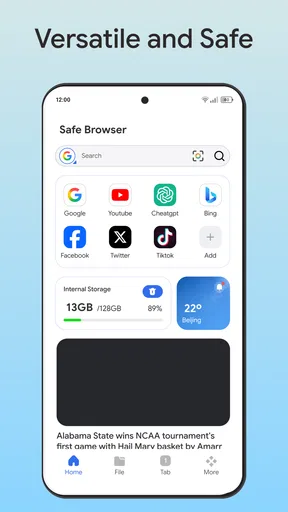
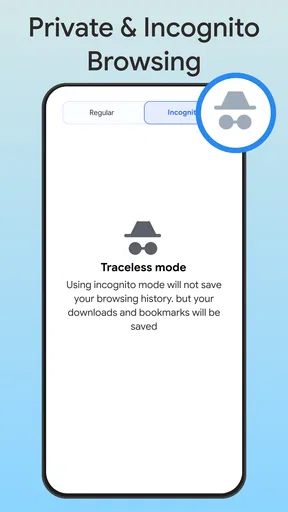
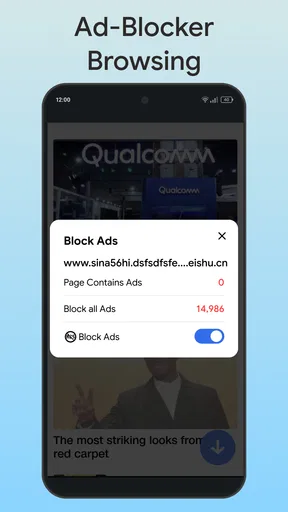
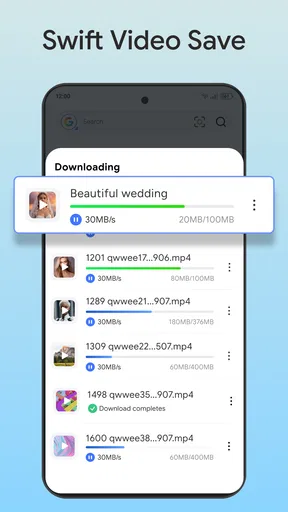
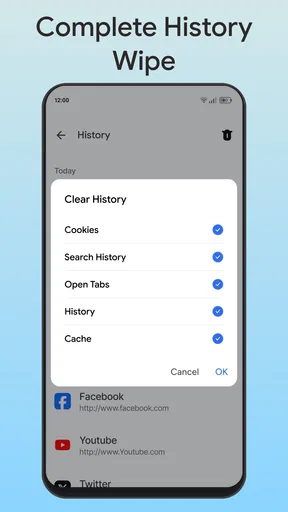
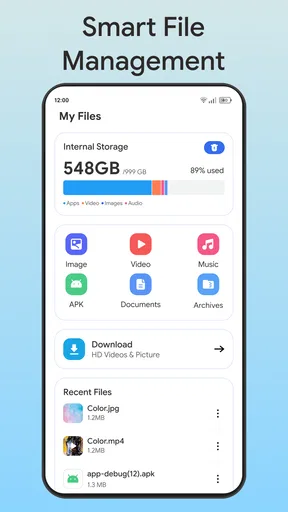

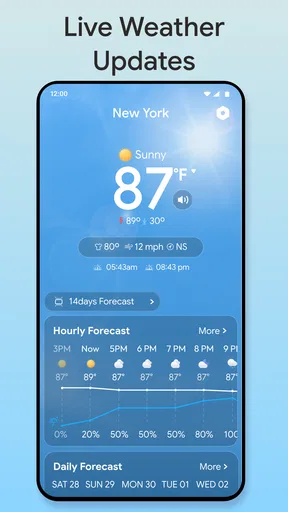
Our Review of SafeBrowser - Secure & Private
 Analysis by Appyee
I spent time with SafeBrowser - Secure & Private as a practical browsing tool rather than treating it like a novelty download. Its appeal is easy to understand: it aims to put private and everyday browsing in one focused app, without asking users to pay before they can try it. I found it most interesting for people who want a separate browser for sensitive searches, temporary research, or a cleaner routine than the browser they already use.
Published by Smart Utils Dev Team, this free Android app sits in the tools category and is suitable for Everyone. It has reached over one hundred thousand installs, with a 4.4 average from hundreds of ratings, so it has already attracted a meaningful group of users without being one of the huge, default browser names. The current release is version 1.0.5 and works on Android 8.0 or later.
How SafeBrowser fits into a normal browsing routine
My first recommendation is not to replace your main browser immediately. SafeBrowser makes more sense when you give it a clear job. I used the regular browser for accounts, saved logins, and familiar daily sites, while reserving SafeBrowser for searches I did not want mixed into that routine. This separation is simple, but it makes the app easier to judge: it has to be quick to open, understandable to navigate, and dependable enough for short sessions.
The baseline workflow is straightforward. Open the app, enter a search or web address, read what you need, and close the session when finished. That approach suits checking a medical term, comparing travel options on a shared phone, looking up a gift, or researching a purchase without filling your usual browsing history with unrelated subjects. I also liked the idea of using it for one-off links received in messages, especially when I did not want to add another site to my main browser’s long-term suggestions.
There is a useful distinction here between private browsing habits and complete anonymity. A privacy-focused browser can reduce the amount of browsing activity left locally, but it cannot make every website trustworthy or erase what a network, service provider, or visited site may observe. I would not use this app as a reason to ignore suspicious links, enter sensitive information on an unfamiliar page, or assume that every connection is invisible.
That expectation-setting matters because the store summary presents the app as an all-inclusive private and smart browser, while its short description is simply SafeBrowser. Those phrases communicate the intended direction, but the real value comes from how carefully you use it. I found the app more convincing as a dedicated privacy-oriented browser than as a magic shield for every online risk.
The best everyday scenario
Imagine borrowing a family tablet to compare prices for a surprise present. You want to search several shops, read reviews, and check delivery information, but you do not want those searches influencing the usual browser on the device. SafeBrowser gives that task its own lane. When the research is finished, closing the app and returning the tablet is less messy than leaving a trail among someone else’s normal tabs and suggestions.
A similar workflow works on a personal phone. I would use the app for temporary research before a trip, a sensitive personal question, or a one-time form that does not deserve a permanent place in my browsing routine. The important habit is to open it intentionally, keep the session focused, and close it rather than leaving a collection of open pages behind.
It is less suitable as my only browser for a full workday. People who depend on extensive tab groups, deep desktop synchronization, password-manager integration, developer tools, or highly refined accessibility controls may prefer a mature mainstream browser. SafeBrowser’s strength is the focused session, not replacing every advanced browsing workflow.
Settings I would check before relying on it
Before using any privacy browser for personal research, I go through its available settings instead of accepting the initial setup blindly. In SafeBrowser, the worthwhile checks are the ones that affect how a session starts, how pages are displayed, and what happens when I leave the app. I would look for options related to clearing browsing traces, startup behavior, search preferences, and page handling, then choose settings that match the way I actually use the phone.
One practical tip is to decide whether you want a browser that opens ready for a fresh task or one that returns to unfinished pages. For temporary browsing, a clean starting point is usually more useful. For a longer research session, returning to the same page can save time. The right choice depends on the trade-off between convenience and separation, so I would not copy another user’s configuration without considering the kind of information being handled.
I also recommend checking the default search behavior. A private browser and a private search experience are related but not identical. If the app lets you choose a search provider, select one whose privacy approach you understand. If it does not offer the choice you want, that is a meaningful limitation rather than something to work around with vague assumptions.
Display settings deserve attention too. A browser that feels private but forces awkward text size or uncomfortable contrast will be abandoned quickly. I normally adjust text scaling before a long reading session, particularly on a smaller phone. This is a small change, yet it prevents the common mistake of judging a browser’s usability while struggling with its default presentation.
Another repeatable habit is to test the app with ordinary, low-risk pages first. Open a familiar news page, a simple information site, and a page with a form before using it for anything important. This reveals whether the pages you care about load properly and whether a site depends on features that the browser handles differently. I would never make a privacy decision based only on the app’s name or its first screen.
Settings are useful only when paired with habits
No setting can replace careful session management. I found the most sensible routine was to separate browsing purposes: one browser for persistent accounts and another for temporary exploration. I would also avoid signing into a personal account during a session intended to stay separate, because logging in can connect that activity to the account regardless of which browser is being used.
For shared devices, I would close pages after completing the task and check the app before handing the device back. For a private phone, I would still avoid keeping sensitive pages open in the app switcher. These are not glamorous techniques, but they are more reliable than assuming a single privacy label handles every detail automatically.
There is also a performance trade-off. Privacy-oriented behavior can sometimes make websites less convenient, especially when pages expect extensive tracking scripts, persistent preferences, or advertising-related components. If a checkout, login, or interactive tool behaves strangely, I would first confirm the site address and try the task in my normal browser only when I trust the page and need the extra compatibility. That two-browser fallback is more practical than forcing every website through one tool.
Faster patterns for repeat users
After the initial trial, I stopped thinking of SafeBrowser as a place to browse randomly and started treating it as a launch point for specific tasks. The fastest pattern is to decide the purpose before opening it. “Check this article,” “compare these products,” or “look up this temporary question” is better than opening the app without a destination and then collecting unrelated tabs.
If you repeatedly visit the same kind of page, keep the address or search phrase ready in a note or password-free shortcut outside the browser. That avoids turning a privacy session into a permanent archive of browsing history. I would not store sensitive addresses in an exposed note, but for ordinary research destinations this approach can reduce typing without creating a large browser profile.
Another useful pattern is a two-pass search. First, use SafeBrowser to gather broad information without signing in. Then, if a purchase or account action is genuinely necessary, decide whether the task belongs in the main browser. This keeps discovery separate from transactions and makes it easier to notice when a site is asking for more personal information than the task requires.
For reading, I prefer opening one source at a time and writing down the useful conclusion rather than leaving ten pages open. That habit improves privacy and makes the app feel faster because the session remains small. It also helps with source comparison: I can note the claims that matter, close the pages, and avoid confusing a temporary research session with a permanent collection of tabs.
People who share devices can create a simple handoff routine. Finish the task, close the pages, return to the browser’s starting view, and leave the app in a neutral state. This is especially helpful on tablets used by several family members. It does not guarantee that every trace is gone, but it reduces accidental exposure from an open page or visible subject line.
Where it compares well with familiar alternatives
Compared with the browser already installed on most Android phones, SafeBrowser’s main advantage is intentional separation. A default browser is usually better for synchronization, account continuity, and the broadest compatibility. SafeBrowser is more appealing when you want a distinct space for temporary or privacy-conscious browsing and do not want those activities mixed into your everyday profile.
Compared with a large privacy-first browser, the decision is less obvious. A mature privacy browser may offer a longer history, more documented controls, wider extension support, or stronger cross-device workflows. SafeBrowser can still be the better choice for someone who wants a smaller, simpler tool and does not need a large ecosystem. The trade-off is that simplicity should not be mistaken for a complete replacement for specialist privacy tools.
Compared with using private mode inside a conventional browser, this app offers a more deliberate separation because it is a different browsing environment. That can make the habit easier to remember. However, private mode in a familiar browser may be faster for a one-minute task, especially if you already know its controls and do not want another app installed. I would choose SafeBrowser when the separate routine itself is valuable, not merely because opening a second app sounds more secure.
Limits experienced users should understand
The biggest limitation is the gap between a privacy-oriented interface and the broader privacy picture. SafeBrowser cannot decide whether a website is honest, prevent you from volunteering identifying information, or make an unsafe download safe. I would still inspect domains carefully, avoid unexpected permissions, and treat urgent pop-ups as suspicious.
Website compatibility is another possible friction point. Modern sites can rely on scripts, cookies, embedded services, and account systems in complicated ways. If a page refuses to load correctly, repeatedly asks for verification, or loses an important part of its interface, I would not keep retrying sensitive actions. Use the app for reading and initial research, then move to a trusted alternative only when the site and task justify it.
I would also skip this app if my priority is a polished, all-device productivity setup. Someone who works across Android, iOS, and desktop platforms, or who needs every bookmark and tab synchronized, should compare dedicated mainstream options first. SafeBrowser is aimed at a more contained experience, and that containment is both its appeal and its boundary.
Families should remember that an Everyone age rating describes broad suitability, not complete supervision. A privacy-oriented browser may make it harder for a parent to understand what was viewed on a shared device. For a child’s device, I would choose tools designed for parental controls and age-appropriate management rather than relying on a private browsing app alone.
Finally, I would keep the app updated through the normal Android store process and review its behavior after updates. The current version is 1.0.5, and software can change its interface or handling over time. I would test the settings that matter to me after an update instead of assuming that a familiar routine remains identical.
My verdict after building a repeatable routine
SafeBrowser - Secure & Private works best when you give it a narrow, useful role. I would recommend it to an Android user who wants a free secondary browser for temporary research, shared-device browsing, or keeping certain searches separate from a main browser. The app’s value grows when you combine its privacy-focused purpose with disciplined habits: start with a clear task, check the relevant settings, avoid unnecessary sign-ins, and close the session when finished.
I would not recommend treating it as an invisible cloak or as a guaranteed replacement for a mature primary browser. Users who need advanced synchronization, extensive customization, or maximum compatibility may be happier elsewhere. The same is true for anyone who expects the app alone to protect them from unsafe websites or careless sharing.
For the right user, though, the straightforward approach is a strength. SafeBrowser gives temporary browsing a separate home, and that can be more useful than another crowded browser profile. My final advice is to install it only if you are willing to use that separation consistently. The strongest setup is not the most complicated one; it is the routine you can repeat without forgetting what the app can and cannot protect.
With its free access, Everyone rating, support for Android 8.0 and newer, and growing user base, it is easy to try without committing to a paid service. I would begin with low-risk searches, inspect the available controls, and compare it with your current browser over a few real tasks. If that focused workflow feels natural, SafeBrowser becomes a useful tool rather than just another browser icon.
Verdict
Strengths of SafeBrowser - Secure & Private
- Blocks many trackers and intrusive ads by default.
- Private browsing tools help limit local browsing traces.
- Simple interface makes secure browsing easy for beginners.
- Supports safer browsing on public Wi‑Fi networks.
- Useful privacy controls are available without complex setup.
Limitations of SafeBrowser - Secure & Private
- Some websites may not display correctly with privacy blocking enabled.
- Extra protection can slightly reduce browsing speed.
- Certain advanced features may require a paid plan.
- Website compatibility may vary across devices and browsers.
- The app’s privacy claims still depend on its permissions and settings.
Similar Picks in This Category
View All
Google LLC4.0

Gboard - the Google Keyboard
Google LLC4.5

Google Play services
Google LLC4.3

Google Play Store
Google LLC4.9

Files by Google
Google LLC4.5

SHAREit: Transfer, Share Files
Smart Media4U Technology Pte.Ltd.4.3
Frequently Asked Questions
What is SafeBrowser - Secure & Private, and what does it do?
SafeBrowser - Secure & Private is designed for users who want a more privacy-conscious web browsing experience on a mobile device. It typically focuses on features such as safer browsing, reduced tracking, private sessions, and protection against suspicious websites. Before downloading, users should review the app’s current feature list, supported devices, and privacy policy because available tools may vary between Android and iOS versions.
Does SafeBrowser - Secure & Private guarantee complete online anonymity?
No browser can guarantee complete anonymity by itself. SafeBrowser - Secure & Private may help limit tracking, protect private browsing activity, or warn users about potentially unsafe pages, but it cannot prevent every form of monitoring. Your internet provider, websites, installed apps, and account activity may still collect information. For better privacy, use strong passwords, enable two-factor authentication, keep the app updated, and avoid entering sensitive details on untrusted websites.
Is SafeBrowser - Secure & Private free to download and use?
The app may be available as a free download, but some privacy, security, or customization features could require payment, a subscription, or in-app purchases. Users should check the official Google Play Store or Apple App Store listing for the latest pricing, trial conditions, advertisements, and renewal terms. It is also worth confirming whether the free version includes the protection tools you actually need before installing it.
Can SafeBrowser - Secure & Private protect me from viruses, scams, and phishing websites?
A secure browser can reduce risk by blocking or warning about suspicious pages, deceptive links, intrusive trackers, or known malicious content. However, these protections are not perfect and should not be treated as a replacement for careful browsing or device security software. Always verify website addresses, avoid unexpected downloads, do not share passwords through unfamiliar pages, and keep your operating system and browser updated.
What permissions and personal data may SafeBrowser - Secure & Private require?
A browser normally needs access to internet connectivity and may process browsing-related information in order to load pages, save preferences, manage downloads, or provide security warnings. The exact permissions and data practices can change with updates, so users should read the store listing and the developer’s privacy policy before installation. Pay particular attention to information about browsing history, identifiers, location, analytics, and third-party sharing.
